Twitch is a streaming platform that allows its users to talk about a variety of topics that viewers can interact with and chat about. However, when a person’s stream ends, the fun doesn’t have to end there. Streamers can promote other streamers on the platform by sending their audience directly to those creators! How do they do this? ThroughTwitch RaidsandTwitch Hosting! These tools make it so that streamers can introduce their audience to new personalities while also promoting deserving creators for all of their hard work.
So, how exactly do you raid a channel or even host another channel on yours?
How to raid another channel on Twitch
There are two ways that you can raid another channel on Twitch. For one, you can type the term “/raid” followed by the name of the account you want to raid directly into your stream’s chat. While this version does not automatically redirect viewers to another stream, it does notify them of where the channel’s content is going to be headed next.
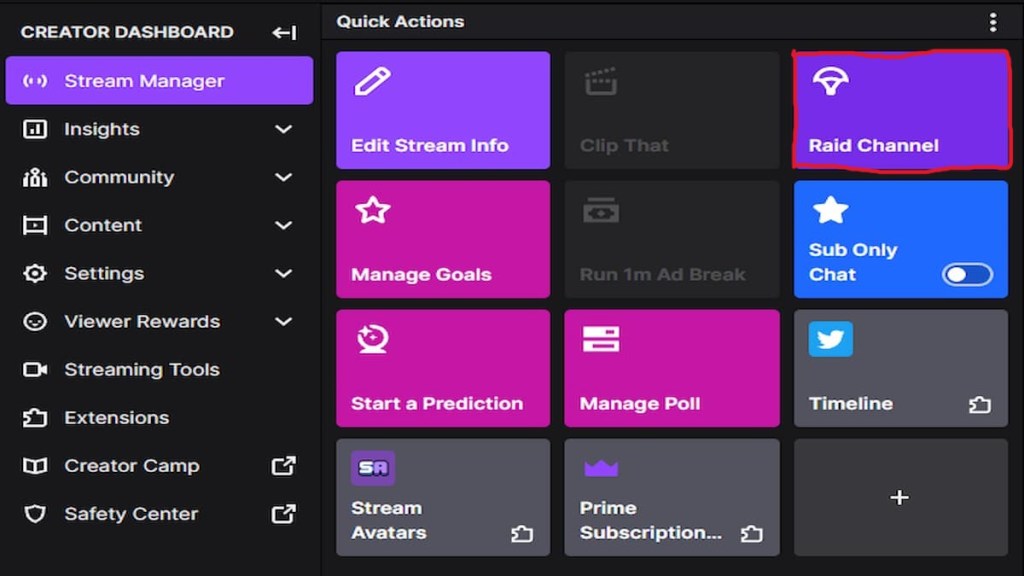
The second way to raid another Twitch channel is by going to yourCreator Dashboardand using theRaid Channeloption to search for the user you’d like to raid. After you formally “Start the Raid,” the viewers in your chat will then receive a viewable countdown that will notify them of when they will automatically be redirected to the other stream.
Related:All Twitch Streamers participating in the Overwatch Support a Streamer event
Can you stop Twitch Raids?
How to host another channel on Twitch
Hosting is similar to raiding because it directs your viewers to a channel that is not your own. Hosting works a little bit differently because you don’t necessarily do it when you’re already streaming. You’ll want to host other streamers when you know that you will not be available to entertain your viewers yourself. There are also two ways in which you’re able to host another channel.
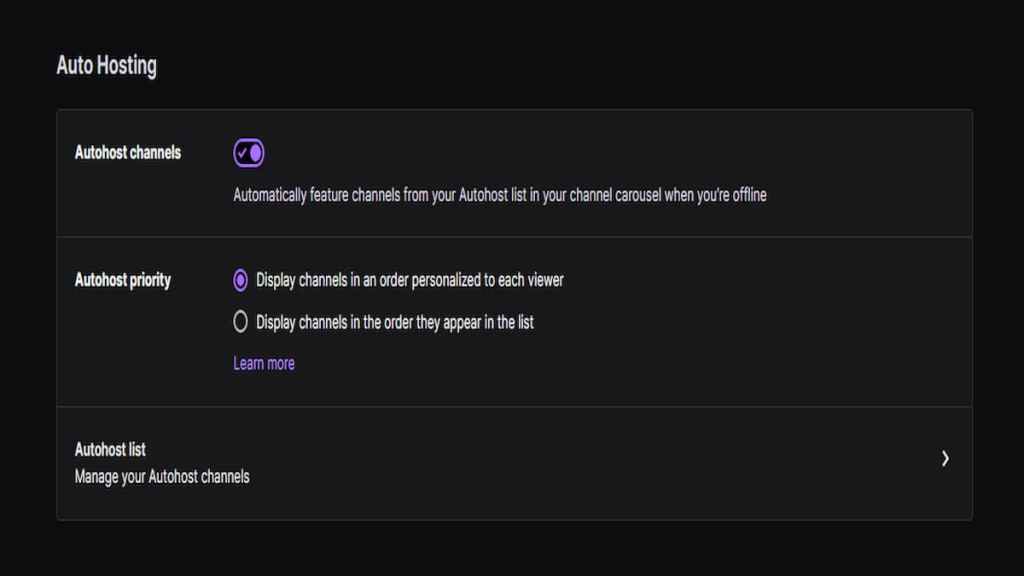
First, you may type in the term “/host” followed by the name of the account you’d like to host directly into your stream’s chat. You can also set it up so that your account will auto-host different streamers that you set it to. Go into your account’sSettingsand open up theChannel and Videosoption. From there, you can manage your auto-host channels and change the streamers you’d like to feature.
Can you stop another Twitch account from hosting you?
You can stop hosting an account by simply typing the “/unhost” command into your Twitch chat. But, you can’t stop another account from choosing to host you. All you can do is what was mentioned above to ensure that chatbots and spammers don’t fill your chat.
For more about Twitch, check outBest USB microphones for streaming on Twitch & YouTubeonly on Pro Game Guides.
