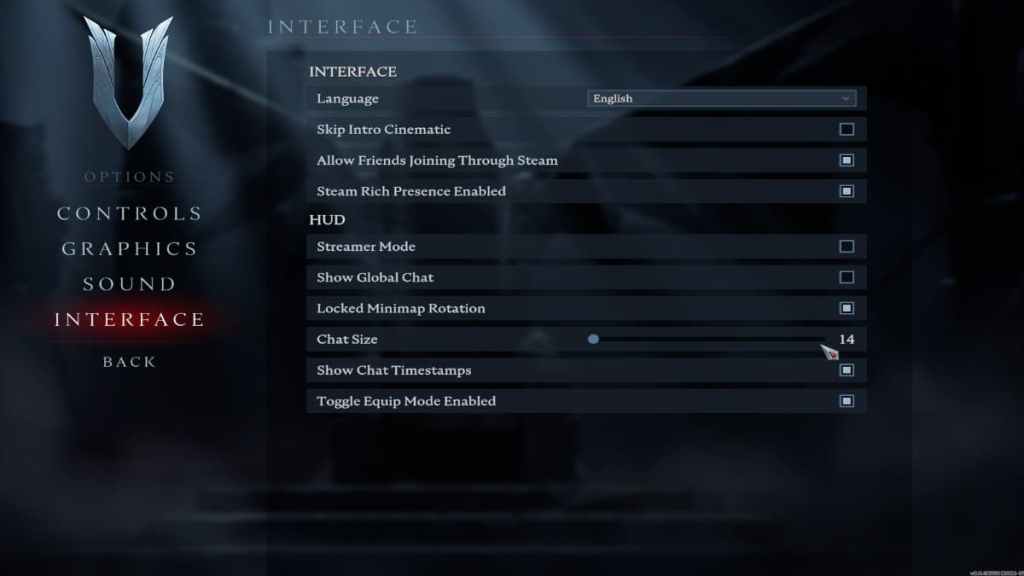
If you want to turn off Global Chat in V Rising, it is easy. Start by opening the Main Menu by hitting theESC keyon your keyboard. Once at the Main Menu, you will need to locate the options menu underResume game. Under theOptionsTab, you will need to find theInterfacetab. After clicking theInterfaceTab, find and uncheck theShow Global Chatoption.
Unchecking Show Global Chat will turn off Global Chat in V Rising, and you will no longer have to see what people say at the top left of your screen. If you rather make the Global Chat smaller, you can do so by using theChat Size Adjustoption below.

Chat Size will change how big the Chatbox appears in the top left corner, with14being the smallest and20being the highest setting. We recommend using the Chat Size option if the Size of the Global Chatbox is your only problem. But If you want to turn the Chat Size back on in the future, you can do so by just going back and rechecking Show Global Chat.
Related:Stunlock Studios announces cosmetic DLC ahead of V Rising release
How to turn off Voice Chat in V Rising
To turn off Voice Chat in V Rising, you will need to open the Sound tab under options in the Main Menu. Under Sound, search for the Voice Chat category and uncheck the following:
Unchecking all three options will disable Voice Chat in V Rising. If you want to turn voice chat back on in the future, you’re able to recheck all three options and confirm the changes.
For more on V Rising, we recommend checking out bothIs V Rising an MMO?andDoes V Rising have controller support?
