It can be frustrating to want to use your Steam application, only to have it act up on you. That’s why we’ve created a guide to show you how to restart Steam and hopefully get it to function smoothly again.
How to restart your Steam app
Restarting the Steam app is really simple and quick to do. Click theSteambutton in the top left of the application, thenhit Exitat the bottom of the options list. This will make the Steam app fully shut down, rather than simply sleep in the background as it does at times. Open the app again after a few moments, and the program will have fully restarted.
Related:How to cancel recurring subscriptions on Steam

How to restart Steam when it is frozen or not responsive
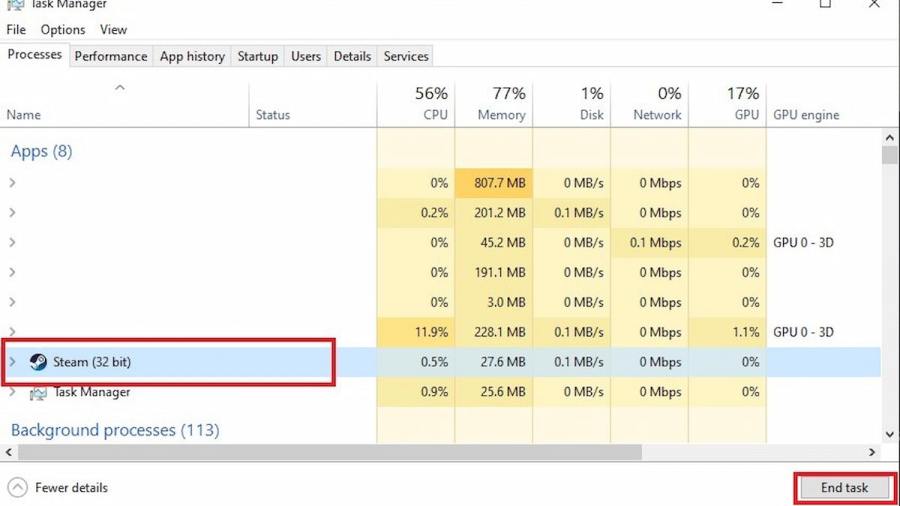
If your Steam app is frozen, using typical methods to restart the program is not going to be very helpful for you. If the program is completely unresponsive, the best method to employ is to pull up Tas Manager by typingCtrl+Alt+Deletesimultaneously, and thenchoosing the Steam optionon the menu before hittingEnd Task. Once you have done this, try opening Steam again. If you cannot get Task Manager to pull up, this may be an issue with your computer and not Steam. At that point, you’ll need to hard restart your computer.
Want to read more about Steam? If so, check outHow to refund a game on Steamon Pro Game Guides.