Discord has a built-in feature to show your activity in Discord while playing games. This usually appears in the top left-hand corner of the screen and can even be adjusted in size. This can block out some important things while playing certain games, and might even be annoying for some players. This is how to remove a Discord Overlay.
How To Remove Discord Overlays
How To Disable Discord Overlays
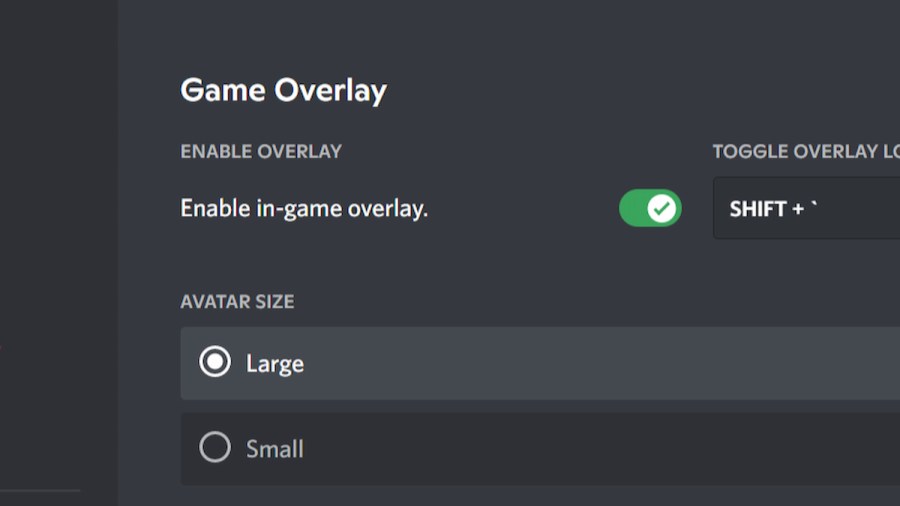
In the Discord app, players can navigate to theirUser Settingsby clicking on thegear iconin the bottom left-hand corner. From there, the settings for Discord Overlays can be found underActivity Settings. Simply toggling theEnable Overlaysetting will disable the Discord Overlay forall games.
Related:How to hide the game you’re playing on Discord

How To Disable Discord Overlays On Specific Games
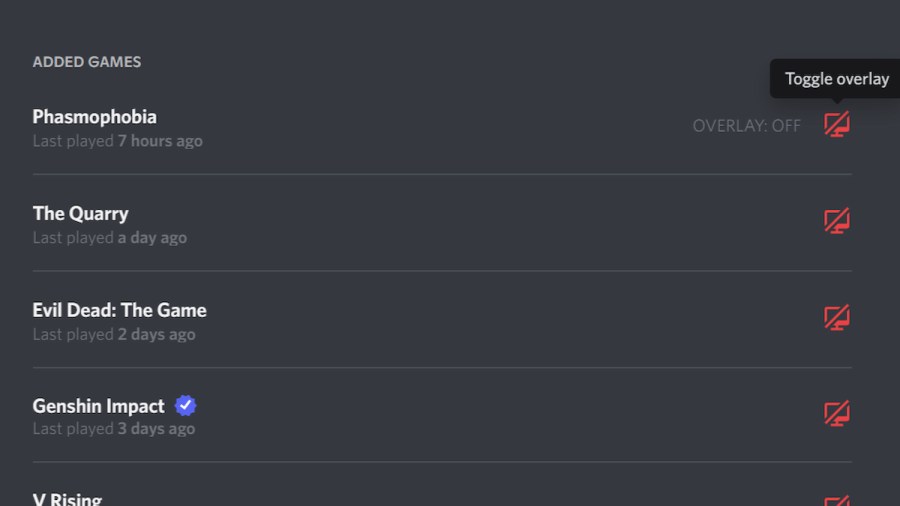
InActivity Settingsagain, players can selectActivity Statusto get to a menu that displays all games that Discord keeps track of. The Game Overlay of each game can be toggled from this menu to turn off certain games while leaving others on.
For more Discord guides, check outHow to strikethrough on Discordon Pro Game Guides.