Two Point Campus is a greatsimulation game for PCand Xbox that allows you to create and run various college campuses, each with its fun twists, from knighthood and wizardry to spy school. It’s up to you to create a comfortable environment for your students and provide them with the materials they need to be successful in their learning process. You will need to gain levels to advance your campus and earn stars.
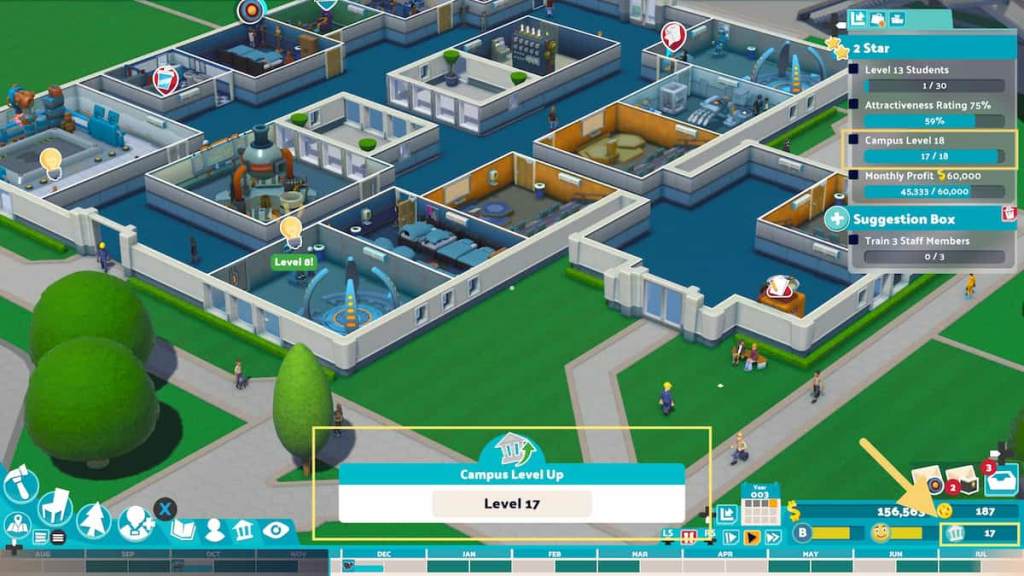
Campus level is the overall score of your campus based on the progress you have made and how well your campus is running. Sometimes you will be tasked with leveling up your campus to earn stars and progress further in the game. You can see your campus level anytime on the lower right side of the toolbar, symbolized by the building icon. There are a few different actions you can do to level up your campus quickly and efficiently:

Build rooms
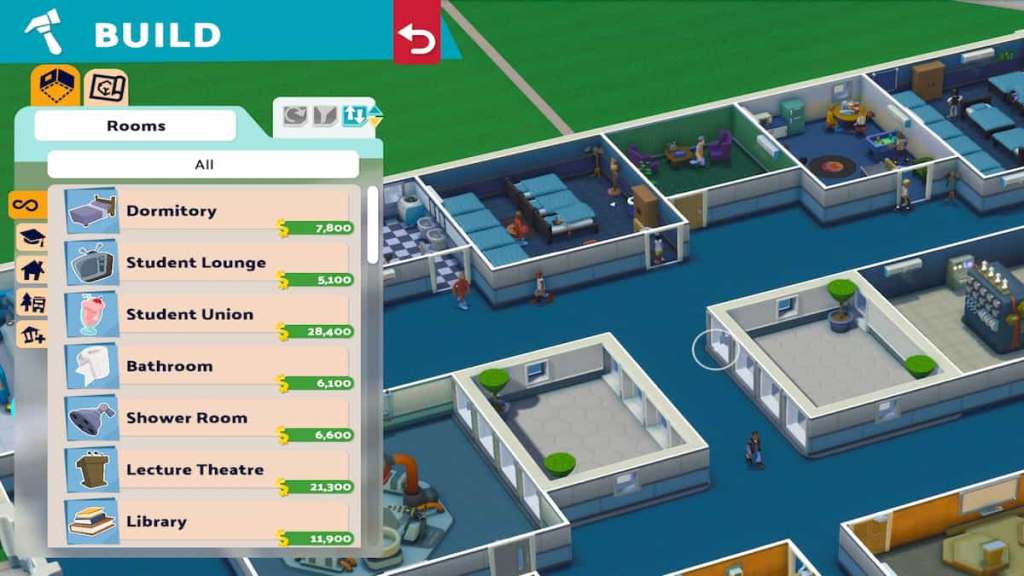
An excellent way to level up your campus is tobuild rooms. Building rooms provides more necessary skills and equipment for your students and staff, and increases your overall campus score. To build rooms, press thehammer iconon the far left side of your toolbar. You’ll also want to make sure they havehigh prestigeby placing attractive decor within them.
Related:How to improve Campus & Room Prestige in Two Point Campus
Hire staff
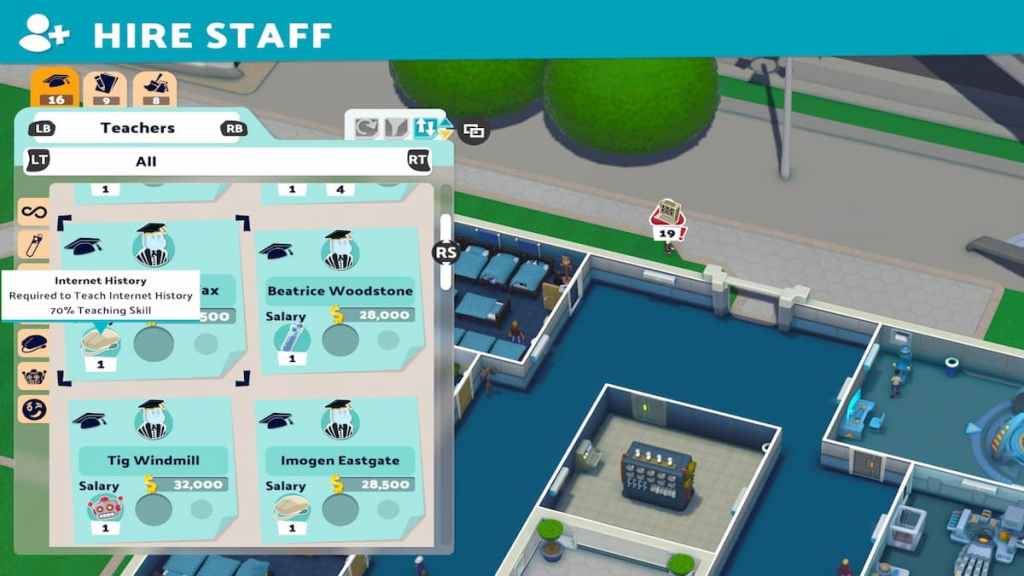
Hiring staffis one of the best ways to earn campus levels quickly. Hiring newteachers, assistants, or janitorssignificantly boosts your campus levels. It’s essential to have enough staff to teach all your classes, run students' functions––such as food stands, libraries, and med-wings––and perform maintenance around your campus. You want to ensure all your staff members get enough breaks, so the more staff, the better. To hire staff, press thesilhouette and plus signicon and choose from the list of applicants. Just be sure it remains in your budget, as paying salaries for a long staff list can add up.
Keep good grades
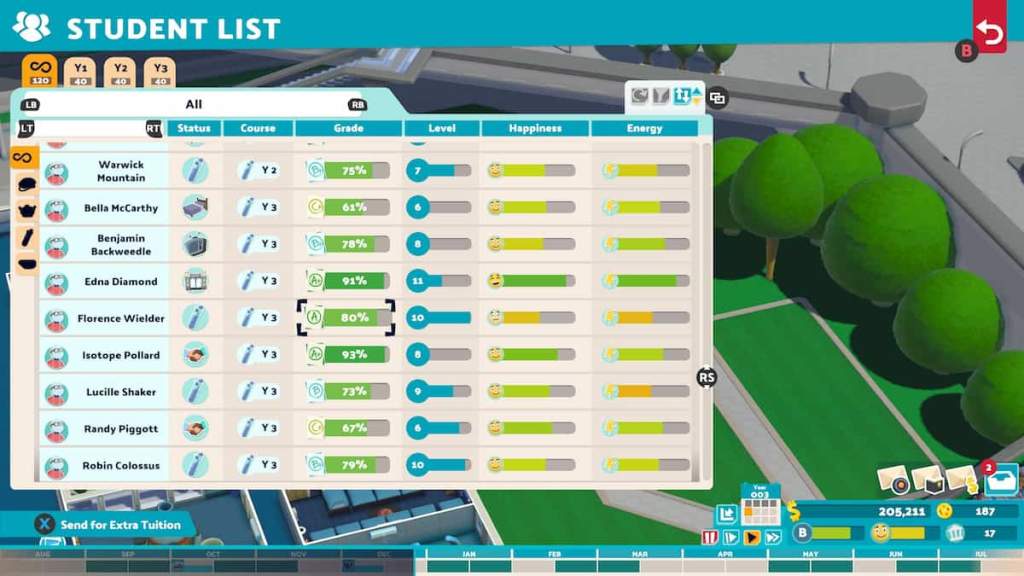
It’s also imperative to keep your averagegrades high. Your campus will slowly increase levels if your students are doing well in their classes and your campus doesn’t get any fails or drop-outs. You can check your students' grades by navigating to theStudent Listmenu. Hover over the silhouette icon on your toolbar, and then find the Student List symbolized by thethree silhouettes. To ensure your students' grades remain high, make sure all their needs are met, such as hunger, thirst, energy, and hygiene, and continue providing the materials they need to complete each class. It also helps to continuously train your staff and upgrade the classroom equipment for a better learning experience overall.
Related:How to improve Graduation Rate in Two Point Campus
Keep happiness high
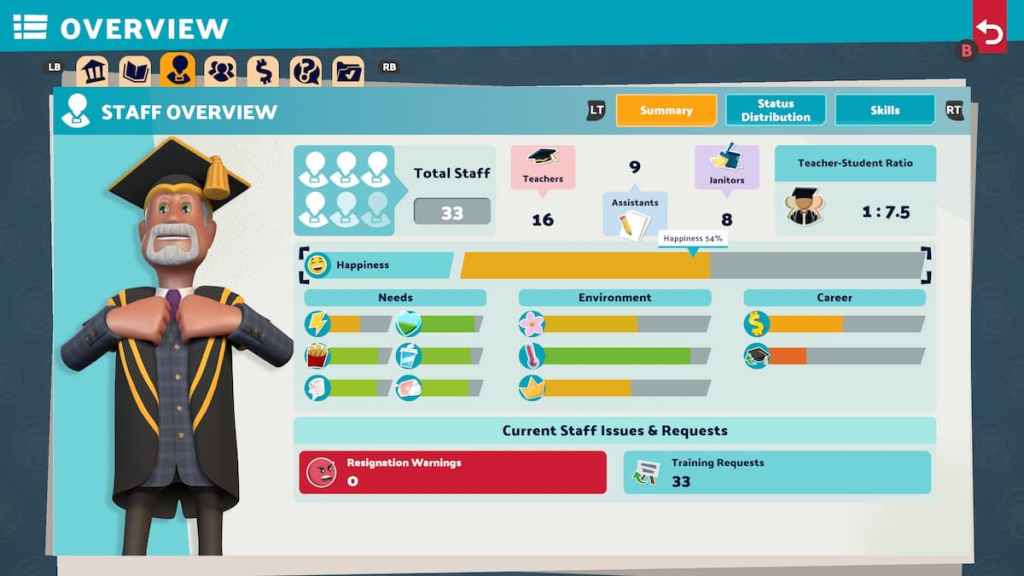
Just like keeping grades high, it’s also essential to your campus level to keep yourstaff and your students happy. Your campus level will continue increasing if your campus is running successfully. Happiness is determined by whether all your staff and students are having their needs met, are content with their financial tuition or salary, and are comfortable in their surroundings. you may view an overview of all the components that play into happiness in theCampus Overviewmenu. You can find it listed in your toolbar under the building icon––the same depicted as your campus level. You can also see happiness in theStudent and Staff listsunder the silhouette icon. The happier your staff and students are, the better they will do in their classes, and the more likely your campus will level up and succeed.
You will level up your campus in no time if you remember to keep up with the crucial factors that help make your campus run smoothly and your students and staff perform better. Build plenty of rooms for learning and fun, hire enough staff to promote a healthy work style, and keep spirits and grades high!
Looking for more Pro Game Guides Two Point content? Check out our guides onHow to make money fast in Two Point CampusorWhat courses can students take in Two Point Campus?