You are not alone if you are currently getting afailed to authenticate from external providererror in PUBG. The failed to authenticate error is extremely common when PUGB gets a highinflux of players. Luckily, you can easily fix the PUBG failed to authenticate error with a few troubleshooting steps. We recommend following the steps below until you find one that works and fixes the problem.
If putting Steam into Offline mode or closing and restarting doesn’t work, then you must tryverifying Steam Filesorrestarting your PC. But if the problem persists even after these two steps, the error could be caused by a broader server issue.

If a broader server issue causes the error, then there is not much you can do beyond waiting for the problem to get fixed. You can check to see if there are server issues by visiting a site likeDowndetectoror the official Twitter account forPUBG. Doing so will allow you to seeif PUBG is currently downor if there are any server issues affecting it.
How to close and restart Steam
To use the close and restart Steam client method, you must first hitCRTL+ALT+DELETEand open the Task Manager. After hittingCRTL+ALT+DELETEa list of options will appear, with Task Manager being the last option. Click Task Manager and then find the Steam client under the list of Processes. When you find the Steam Client, right-click it and then click End Task. Make sure to close bothSteam Client Serviceand theSteam Client Bootstrapper or Steam Client 32 bit.Doing so will close Steam and allow you to restart by relaunching it. After relaunching Steam, PUBG should launch as normal.
Related:How to play PUBG Mobile with Controller
How to put Steam into Offline Mode
To put your Steam client into Offline mode, you must click the Steam option at the top left of your screen. Doing so will make a list of options, with one beingGo Offline. Click Go Offline and then relaunch Steam back into Online mode. Afterward, launch PUBG, and it should work again.
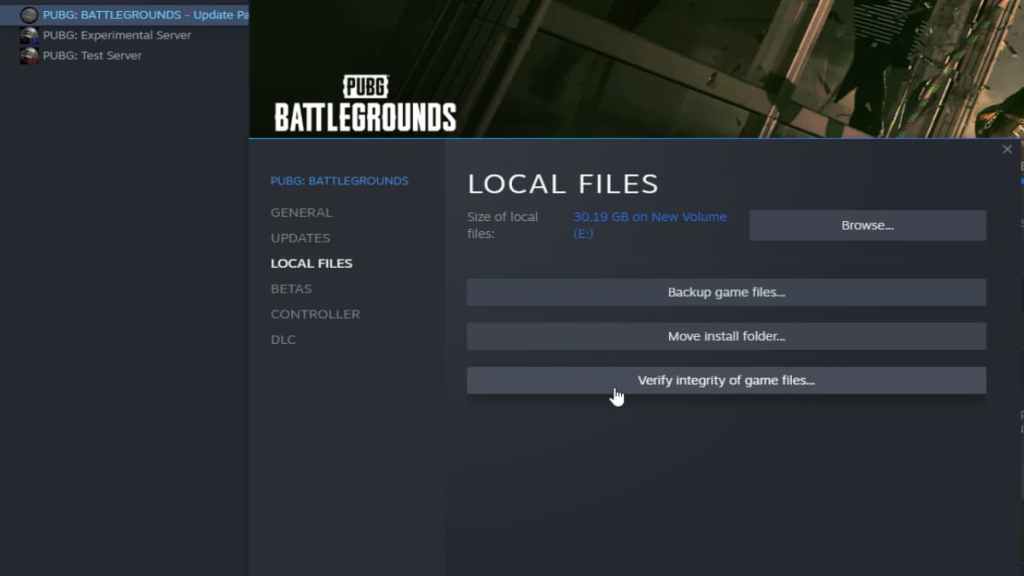
How to verify PUBG Steam Files
To verify PUBG Steam Files, find the game in your game library and right-click its icon. Doing so will make a list of options appear, click the one that says Properties. Clicking Properties will make a small tab appear with a list of several options. In this small tab, find the one that says Local files, and you may verify PUBG Steam Files by using theVerify integrity of Steam Files option. See the image below for an example of what to look for under the Properties tab for PUBG.
For more on PUBG, we at Pro Game Guides have you covered with a host of articles likeBest graphics settings for high FPS in BGMI and PUBG Mobile6 Best Drop Locations in PUBG Troi Map.