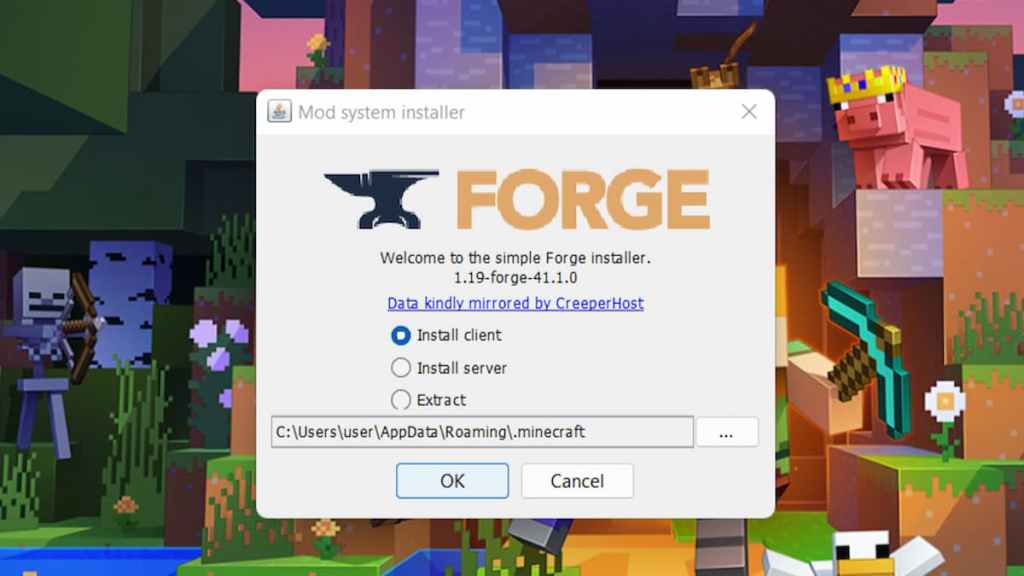
Minecraft Java Edition is arguably more popular than Bedrock owing to its incredible mod support which allows players to customize their gameplay experience both intuitively and aesthetically. If you wish to play Minecraft on PC with a controller, you must download the Controllable mod. However,installing mods on Minecraftentails a number of processes. In this guide, we will talk about how you’re able to add controller and game pad support for Minecraft Java Edition.
How to play Minecraft on PC with a controller
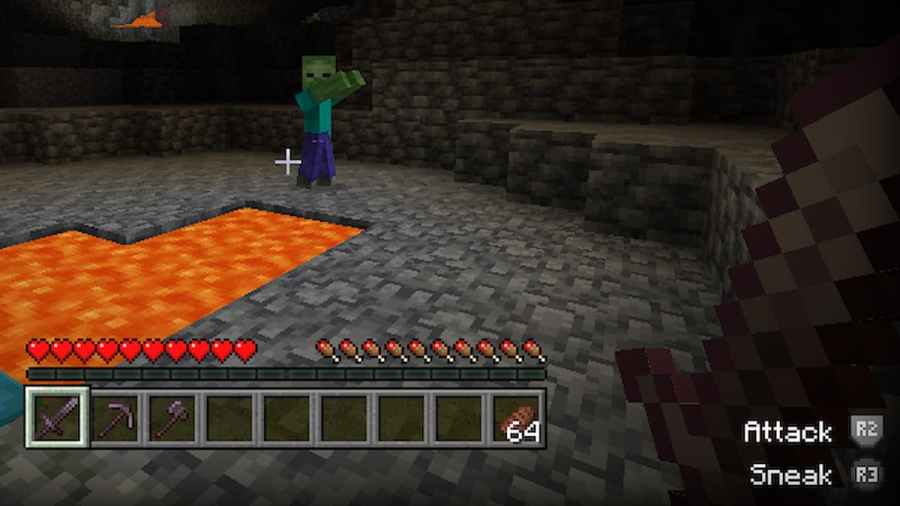
With all the functions you can perform in Minecraft, it only makes sense that many players wish craft and survive using a controller. Unfortunately, Minecraft Java Edition does not have support for game pads or controllers. Therefore, the only way to play Minecraft on PC with controllers is by installing theControllable mod. This mod allows you to play Minecraft Java with a controller and makes it more accessible with on-screen button hints, and also allowing you to change keybinds to allow for quick crafting.
How to install Controllable mod in Minecraft Java Edition
Installing a mod in Minecraft Java Edition requires you to download and install Forge. Forge is an open-source server that allows players to install and run Minecraft mods. When downloading Controllable or Forge, be sure to download the version which corresponds to the version of Minecraft Java installed on your PC. With that said, here’s how you can download and install the Controllable mod in Minecraft Java Edition.
Related:Best Realistic Minecraft Mods
How to install Forge in Minecraft Java Edition
As mentioned prior, Forge is a modding API that can support tons of Minecraft mods to help you customize your Minecraft experience. Whether you want to install a shader pack, or the Controllable mod in order to add controller support, you will need to run it through Forge. Here is how you can download and install mods by using Forge in Minecraft Java Edition.
The first step is todownload Forge. Make sure to download the version which corresponds to the version of Minecraft installed on your PC. For example, if you are playing Minecraft 1.19, then download Forge 1.19. Once you have selected the version, click on theInstallerbutton. This will redirect you to an ad-page where you must waita few secondsuntil the redSkip buttonappears. Once you click the Skip button, your download should begin immediately. After successfully downloading, install the Forge client on your device.
Related:How to build an AFK fish farm in Minecraft
In order to run the Forge Installer, you must haveJavainstalled on your PC. The reason for this is simple—Minecraft is coded completely in Java. Therefore, if you cannot open the Forge installer, consider downloading thelatest version of Javaand installing it. However, if you still cannot open the Forge installer, you will need to download and installJarfix. This software helps identify .jar file issues and fixes them at a click.
Launch Minecraft with Forge
In order to launch Minecraft with the newly installed Forge, we must first open the Minecraft Launcher. Then, go to theInstallationstab and click onNew Installation. In this new installation, select forge 1.19 as the version. Then, select your preferred screen resolution and hit Create. Finally, launch Minecraft with Forge by selecting the new installation from the Minecraft Launcher.
Add Mods
Once Forge is installed, adding mods is quite straightforward. Simply click on theModstab in themain menuin-game. Then selectOpen Mods Folder, and drag and drop any downloaded mods file in the Mods folder. Restart the game, and your mods should be installed successfully.
Looking to install some fancy graphics mods in Minecraft Java? Check out theBest Shader Packs in Minecraft, right here on Pro Game Guides.