Raft is a game that throws you into a world filled with ocean waters alongside your friends. You are asked to perform different tasks and objectives all while maneuvering through different water-based obstacles. Even though the point of the game is to play with your friends, there is one thing that prevents players from really being able to do that: it’s only available to play on PC.
Instead of purchasing new hardware to play Raft, we’ve created a guide that can help you play it directly on your Mac.

How to play Raft on Mac
There are currently two ways to play Raft on PC. you’re able to either download the Boot Camp client which essentially adds the Windows OS to your Mac or install Windows Parallels. Both options essentially install the Windows OS on your Mac and allow you to perform basic PC tasks. This includes being able to play games that couldn’t be played before.
Note: Installing Windows on a Mac creates a partition of your hard drive to make room for Windows OS. Performing this incorrectly can harm your Mac. If you choose to install Windows on a Mac, be sure to back up your files to a retrievable location.
Related:All Commands and Cheats in Raft
How to install Boot Camp to play Raft on Mac
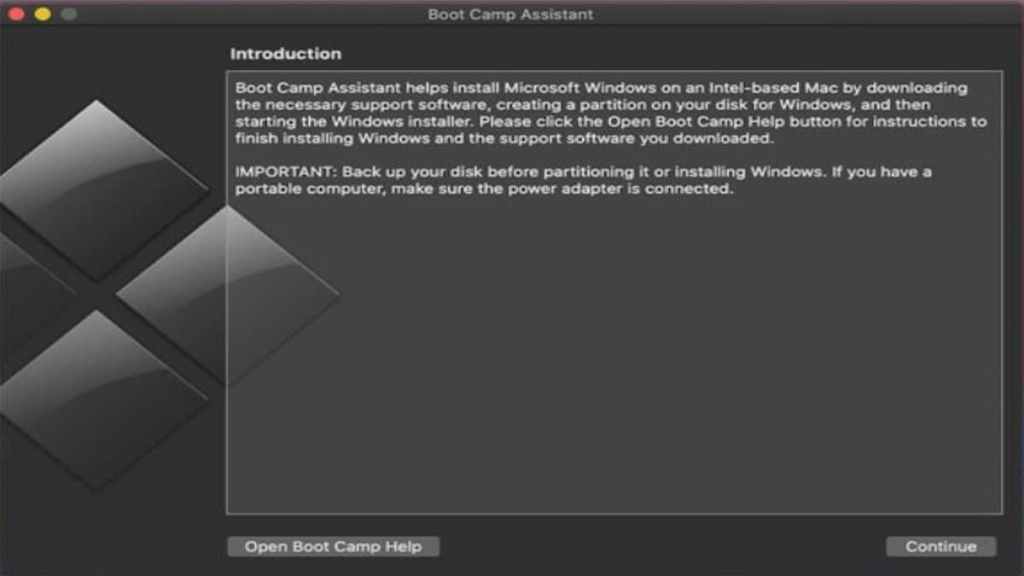
Boot Camp is native to every Mac user’s hardware, so anyone can download it. In fact,Apple has a detailed listof exactly which Mac models are compatible with Windows 10. In theApplicationsfolder of yourUtilitiesfolder, you will want to open theBoot Camp Assistantoption. Before doing thisthis, ensure that you have at least 64 GB of free storage space on your Mac startup disk. You will also need a 64-bit version of Windows 10 Home of Windows 10 Pro whether it be on a disk image (ISO) or a USB. If you’re downloading Windows for the first time, it must be a full version and not an upgrade.
How to check your Mac’s Specs
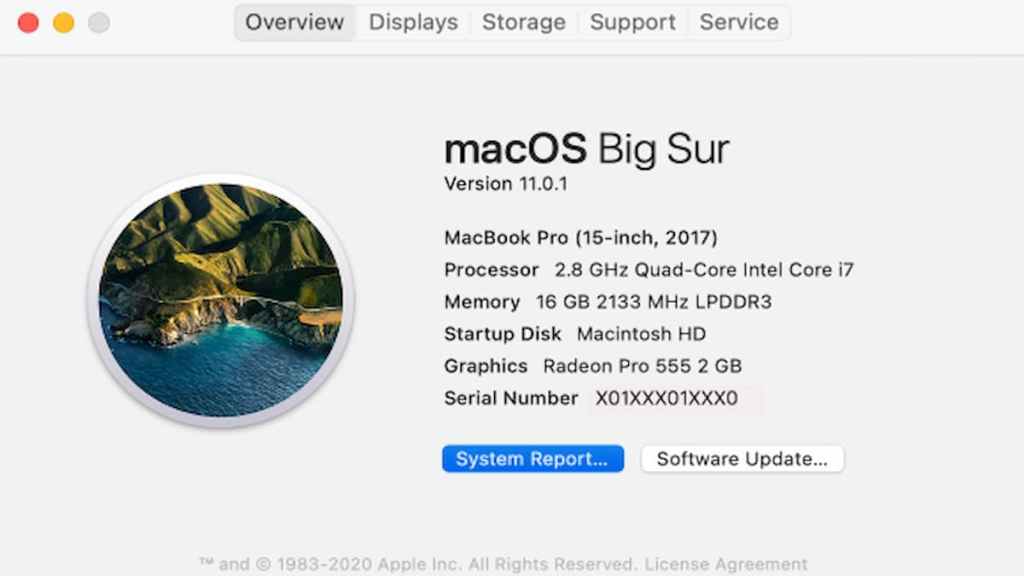
To check your Mac’s specs, select the Apple Menu and choose the About This Mac option. This will open an overview of your Mac that includes your Mac’s model, processor, memory, serial number, and version of macOS. you may get more details by selecting theSystem Reportoption at the bottom of this window.
Following all of the above steps will provide you with a Windows product key as well. Keep this key in a safe place should you be asked for it at any point during this tutorial.
How to install Boot Camp to play Raft on Mac Contd.
Once you have ensured all of the above, you will be asked to follow the on-screen instructions to either insert a USB drive with at least 16 GB of space or set the size of the Windows OS on your hardware. What is the USB used for? There are certain Mac computers that require a USB to be inserted to create a bootable USB drive for Windows installation. The Mac computers not required to use a USB in order to install Windows are:
After this, your Mac will undergo a restart where it will start anew with the Windows Installer. Here, you will be asked to choose where you would like to install Windows in which you will choose the “BOOTCAMP” partition and select theFormatbutton. You will then be taken to the installation screen where you will see the speed at which Boot Camp is installing.
Once the installation is complete, your Mac will restart again and open to a screen that reads “Welcome to the Boot Camp installer.” Follow the on-screen instructions to install any support drivers and the installation will be complete. In order to switch to Windows upon restarting your Mac, you will want to hold theOptionkey during startup. You’ll be able to do all of the same things as you would in the PC version includingperforming different commands and cheatsto enhance gameplay.
Related:How to get and use Titanium ore in Raft
How to install Windows Parallels to play Raft on Mac
This software is very similar to Boot Camp though the difference is the cost. The real difference between Parallels and Boot Camp is really how your system responds to the amount of power required to run things. Boot Camp does take up a significant amount of energy and can potentially slow down applications like Raft. Parallels require less space and are easier to switch to when your Mac is already on.
Once you purchase the program from theofficial website, you’ll just need to follow the basic installation instructions in order to start playing Raft as soon as possible.
For more about Raft, check outHow to make and get Trash Cubes in Raftonly on Pro Game Guides.
