As an MMO, Tower of Fantasy’s most populated servers are always brimming with activity. But that doesn’t stop delinquent players from being annoying by spamming stickers and messages you don’t want to see. If you’re tired of the annoyingin-game chat, you can hide it from the main screen to keep your gameplay distraction-free.
How to hide the chat in Tower of Fantasy
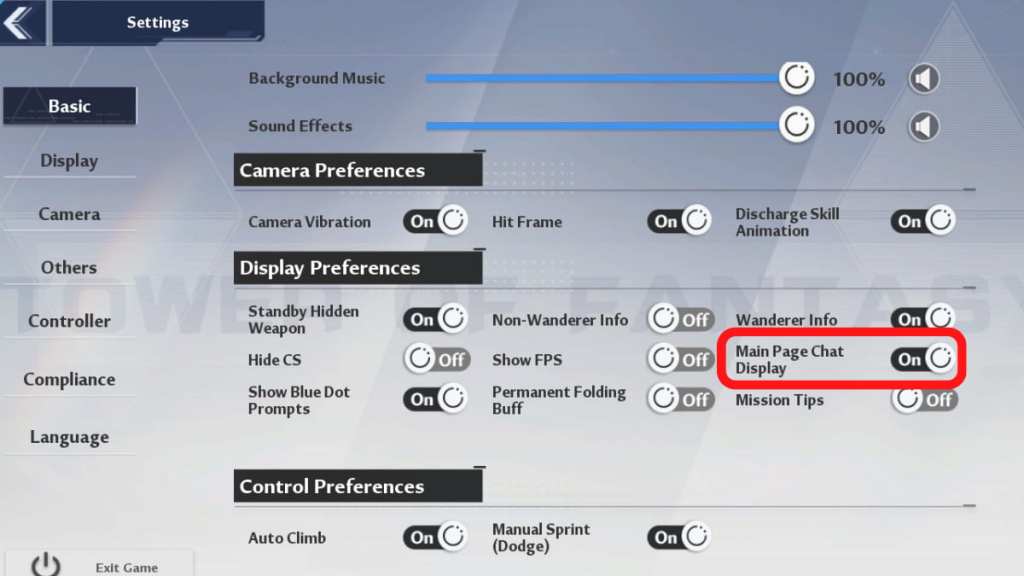
Head to themenuby clicking the ESC button for PC and the honeycomb icon on the upper right of the screen for mobile. Then selectSettings. Under theBasicsection on the lefthand panel, scroll down until you seeDisplay Preferences. Under the Display Preferences, you’ll find a toggle forMain Page Chat Display.
By turning this off, you’re able to completely remove the chat from appearing on your screen. However, you can still use the chat function by clicking Enter on PC or the chat icon on the bottom left of the screen on mobile. You’ll also still see the red button notifying you of a new message.
Related:How to change text and voice language in Tower of Fantasy
How to disable a Chat Channel in Tower of Fantasy
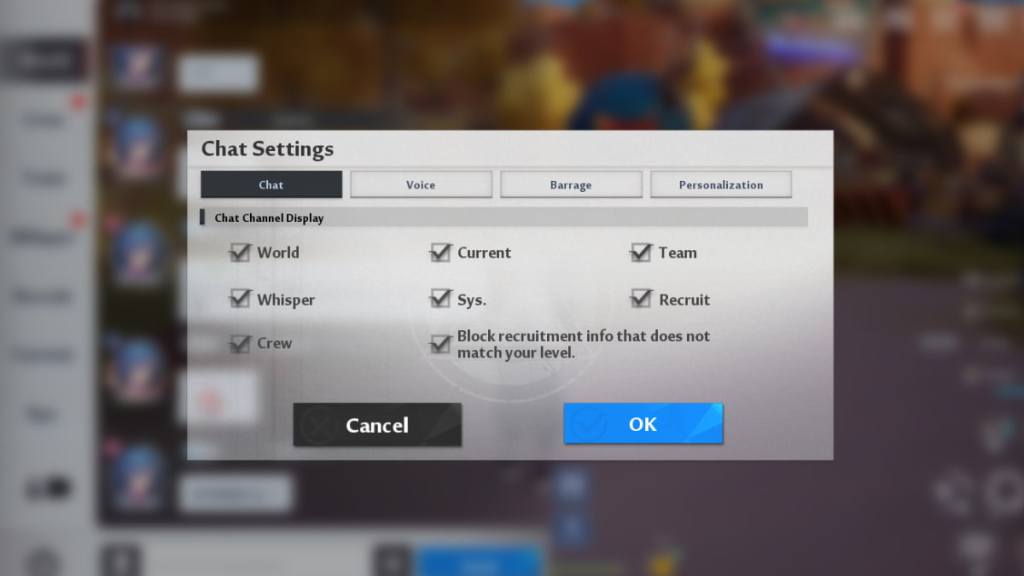
Alternatively, you can mute the chat without completely removing main screen visibility by opening up theChat menuand selecting theChat Settingsbutton on the bottom left of the screen. You can select which Chat Channels you’re interested in seeing. By disabling a Chat Channel, you won’t see messages from it on your main screen, but will still see them in the Chat menu.
Check out our guide onHow to play with friends online in Tower of Fantasyto team up with people you like.